

What if the fastest way to fix a failing partner portal is to stop troubleshooting at random? When partners can’t access information or complete important tasks, it’s natural to focus on the login screen. But what to do when your partner portal is failing depends on whether the problem affects one account, a specific workflow, or the wider service. Start by identifying the scope, then choose checks that won’t create duplicate records or obscure the original issue.
It’s frustrating when there’s no clear way to distinguish an account issue from a broader outage, especially when deal registration, incentive claims, or other channel processes are waiting. A structured triage helps you capture useful details, prioritize blocked work, and route the issue to the right support path without unnecessary changes.
This article explains what to check first, how to assess business impact, and when recurring failures may point to a larger operational problem. It also covers how centralized partner activity, cloud access, and consistent workflows can inform a longer-term platform assessment, including whether PartnerPortal fits your channel’s needs.
What to Do When Your Partner Portal Is Failing
Use the steps below to separate an individual access problem from a workflow issue or broader disruption. Record what you observe before making changes, and avoid retrying a submission if it could create duplicate records.
Key Takeaways
- Identify the specific symptom, such as a sign-in error, missing permission, unavailable page, or failed workflow, before troubleshooting.
- Start with low-risk user checks, then move to administrator review and portal support when necessary.
- Compare reports across users and tasks to assess what to do when your partner portal is failing and whether the problem may be systemic.
- Prioritize blocked partner-facing work by business impact, and give partners a clear status update and route for urgent process questions.
- Consider a broader platform assessment if recurring issues coincide with disconnected workflows, manual tracking, or limited visibility. One login problem alone isn’t enough to justify a change.
Partner Portal Failing? Identify the Symptom Before You Troubleshoot
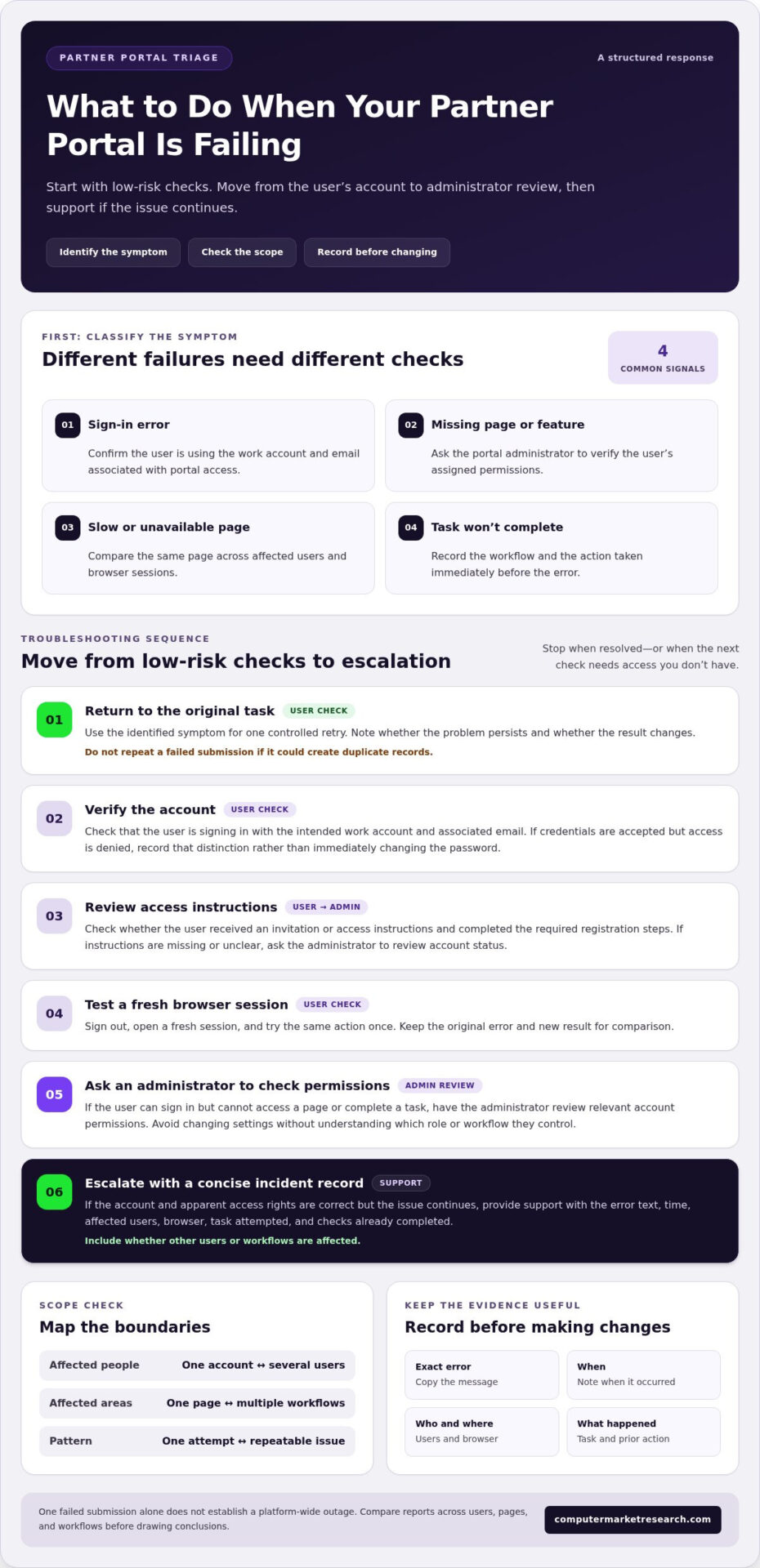
Start with the symptom, then narrow down the scope. A sign-in error, a missing menu, a page that won’t load, and a failed deal-registration submission call for different checks. Classifying the failure first helps avoid random troubleshooting and gives an administrator or support contact useful details.
Use this symptom-to-first-check guide:
- Sign-in error: Confirm the user is signing in with the work account and email associated with portal access.
- Missing page or feature: Ask the portal administrator to verify the user’s assigned permissions.
- Slow or unavailable page: Compare the same page across affected users and browser sessions.
- Task won’t complete: Record the workflow and the action taken immediately before the error.
Keep a short incident record: copy the exact error message, note when it occurred, identify affected users, and describe the action they were attempting. This can help distinguish an access issue from a problem with one part of a broader Partner Relationship Management (PRM) system, which may support several partner-facing activities. Avoid changing settings or repeating a failed submission until you understand what happened, especially if it could create duplicate records.
Is the problem login access, permissions, or a specific account?
Check the user’s identity before assuming the portal is unavailable. Confirm they’re using the intended work account and associated email, not another saved sign-in. Then distinguish a login problem from an authorization issue: can the person authenticate but not reach the portal, or can they enter the portal but not see a page they need? Ask the portal administrator to confirm that the account is registered and has the required access.
Is the portal unavailable, slow, or failing during a task?
Compare the same page or action across users and sessions. Ask another affected user to try the same task, then note whether the outcome changes in a different browser session. If one page or workflow fails while other areas remain accessible, record that distinction. If several users encounter the same issue across different tasks, capture those reports for escalation. One failed submission alone doesn’t establish a platform-wide outage.
Look for the boundaries of the failure: one account or several, one page or multiple workflows, one attempt or a repeatable problem. For example, a partner who can sign in but cannot submit a deal registration is reporting a different symptom from several partners who cannot reach any portal page. That distinction gives the next troubleshooting step a clear starting point and helps assess the scope without guessing at the cause.
How to Troubleshoot a Partner Portal Failure Step by Step
A reliable response starts with low-risk checks, then moves to administrator review and support if needed. Follow the sequence below, stopping when the issue is resolved or the next step requires access you don’t have. Portal settings and support routes vary, so avoid applying fixes intended for a different system.
- Return to the original task. Use the symptom you identified to frame one controlled retry. Note whether the problem persists and whether the result changes. Avoid repeating a failed submission if it could create duplicate records.
- Verify the account. Check that the user is using the intended work account and associated email. If the sign-in page accepts credentials but access is denied, record that distinction rather than immediately changing the password.
- Review access instructions. Check whether the user received an invitation or other access instructions and completed the required registration steps. If the instructions are missing or unclear, ask the portal administrator to review the account status.
- Test a fresh browser session. Sign out, open a fresh session, and try the same action once. This can help determine whether the existing session is involved. Keep the original error and new result for comparison.
- Ask an administrator to check permissions. If the user can sign in but can’t access a page or complete a task, have the administrator review the relevant account permissions. Don’t change access settings without understanding which role or workflow they control.
- Escalate with a concise record. If the account and apparent access rights are correct but the issue continues, send support the error text, time, affected users, browser, task attempted, and checks already completed. Include whether other users or workflows are affected.
Which account, browser, and access checks should come first?
Keep user-level checks separate from administrator actions. The user can verify their account, review any invitation, and test a fresh session. The administrator can then confirm registration and permissions. This handoff prevents repeated password changes or access edits from obscuring the original symptom. If a check changes the outcome, record what changed and whether the task now works.
When should an administrator or portal support team step in?
Escalate when the account and apparent access rights seem correct but sign-in or a workflow still fails, or when multiple users report a similar issue. Administrators can review relevant permissions and service communications. The portal provider can investigate issues beyond the administrator’s access. Share the evidence collected so far and describe the specific task that still fails, rather than restarting troubleshooting from scratch.
Once the immediate issue is contained, review whether the incident exposed a broader process gap. If you’re evaluating a more centralized approach to partner workflows, explore PartnerPortal with its 90-day free trial. A trial supports evaluation, but it doesn’t replace incident diagnosis or guarantee that future portal failures won’t occur.
How to Tell Whether a Partner Portal Problem Is Isolated or Systemic
Compare the issue across users and workflows, then look for a pattern over time. One person blocked from one page may have an account-specific issue. Similar failures across teams or tasks, or repeated incidents, may indicate a broader service or operational problem. Treat these as signals to investigate, not proof of a particular cause.
Use this comparison to organize what you know:
| What to compare | More likely isolated | Potentially broader issue |
|---|---|---|
| Users affected | One user reports the problem; colleagues can access the same area. | Several users report a similar problem, particularly across different accounts. |
| Tasks affected | One page or workflow fails while other portal tasks remain available. | Failures appear in more than one workflow or portal area. |
| Pattern over time | The issue follows one account, permission set, or browser session. | The same disruption recurs, or reports continue after account-specific checks. |
| Workaround required | The user can complete the task normally after an access issue is corrected. | Teams repeatedly move information into spreadsheets or rely on separate channels to keep work moving. |
What signals suggest a user-specific access issue?
Look for a clear boundary: one person is affected, the issue follows that account or permission set, and colleagues can complete the same task. If the user can still reach other portal functions, that also points toward a narrower access or workflow problem. Compare the affected user’s experience with a colleague’s, while keeping account differences in mind.
What signs point to recurring operational friction?
Broader concern grows when reports come from multiple users, involve more than one workflow, or return across separate incidents. Watch for process workarounds as well as technical symptoms. If staff repeatedly copy records into spreadsheets, reconcile updates manually, or answer partner questions because status and resources are hard to locate, the disruption is affecting channel operations.
Partners may feel the effects even when the portal isn’t completely unavailable. Unclear status, delayed approvals, or inaccessible process updates can slow partner tasks and create more follow-up for internal teams. A single workaround may help contain an incident, but repeated workarounds can split information across records and make it harder to maintain a consistent view of partner activity.
To assess the pattern, review incident notes alongside the affected users, workflows, and workarounds. Look for repetition and shared scope, not an arbitrary number of reports. If access issues recur alongside disconnected partner processes or limited visibility, revisit the partner relationship management fundamentals behind the portal. A centralized approach to partner activity may be relevant when the underlying challenge extends beyond one account or one failed task.
Next Steps: Prioritize, Communicate, and Limit Disruption
Once you understand the scope of a portal disruption, organize the response around partner and business impact. A blocked task that holds up deal registration, an incentive request, or another time-sensitive channel process may need attention before a minor display issue, even if the latter generates more reports. Assign an owner to each affected process and make clear which tasks can continue, which are paused, and what partners should do in the meantime.
Use these questions to set priorities:
- What partner-facing task is blocked? Identify the process and the next action that cannot proceed.
- What depends on that task? Note whether a partner or internal team is waiting on information, approval, or a status update.
- Is there a controlled alternative? Use a temporary process only if the team can capture and reconcile its records.
How should teams communicate during a portal disruption?
Send a concise update through an established communication channel. State which portal function is affected, what partners should do now, and when they can expect the next update. If the scope changes, revise the message so partners aren’t relying on outdated guidance. Keep account credentials and other sensitive details out of broad updates, and direct individual access questions through the appropriate private route.
Maintain one internal record of partner questions, workarounds, owners, and outstanding actions. This gives channel, support, and operations teams a shared view of what has been communicated and what still needs follow-up. It also reduces the risk of different teams giving partners conflicting instructions.
How can teams prevent workarounds from creating data gaps?
If a manual record is necessary, assign one owner and define where it will be stored before the workaround begins. Use consistent fields for the partner, task, status, date, and required follow-up. When normal operations resume, compare the temporary entries with the system of record, resolve duplicates or missing updates, and document completion. Without a clear owner and reconciliation step, separate spreadsheets can become competing versions of partner activity.
Manual tracking may keep a task moving, but it can also delay updates and make partner records harder to maintain. If disruptions repeatedly force teams to recreate the same information, review whether more centralized channel partner management software could support more consistent processes. During the incident, preserve accurate records while resolving the immediate blockage.
For a closer look at a centralized approach to partner program management, explore PartnerPortal.
When a Failing Partner Portal Calls for a Better-Structured Platform
A portal problem is a reason to investigate, not an automatic reason to replace the system. One temporary login issue may be resolved through an account or permission correction. A platform reassessment makes more sense when incident records point to a recurring pattern: repeated access disruption, disconnected partner workflows, manual tracking that has become routine, or limited visibility into partner activity.
Evaluate the operating pattern, not just the latest failure. Ask whether teams can oversee partner onboarding and deal tracking consistently, find current program information, and understand the status of partner activity without reconciling separate records. If the same gaps persist after an incident is resolved, the underlying process may need attention alongside the technology.
Which recurring problems justify reassessing portal processes?
Look for friction that crosses teams or tasks. Repeated handoffs can make onboarding difficult to follow. Disconnected systems can leave channel information scattered, while spreadsheet workarounds can make records harder to keep aligned. Limited visibility into partner activity or program performance is another signal, particularly if teams must assemble updates manually before making decisions.
- Reliability: Similar portal disruptions recur and affect partner-facing work.
- Workflow continuity: Teams rely on repeated manual handoffs to complete routine processes.
- Information control: Partner records, status updates, or performance information are difficult to view consistently.
- Partner experience: Partners struggle to locate resources or understand the next step in a process.
These signals don’t prove that a new platform is necessary. They help define what an evaluation should address and provide a basis for comparing current processes with the outcomes your channel program needs.
How can a structured platform support partner operations?
A centralized system can give teams a consistent place to manage partner program activity instead of relying on disconnected records and repeated manual updates. Computer Market Research’s PartnerPortal is a web-based, cloud-accessible platform that centralizes partner program management and supports partner self-service. CMR solutions can integrate with ERP and CRM systems, and provide real-time dashboards, reporting, and analytics for channel performance, fund usage, and partner activity.
When assessing a CMR PartnerPortal platform, compare its role with the problems you documented: which partner processes should be centralized, where do teams need better visibility, and which spreadsheet-based steps could be replaced with more consistent workflows? Keep the evaluation tied to those operational requirements rather than assuming a platform change alone will prevent outages or resolve every process gap.
If a broader assessment is warranted, explore PartnerPortal as one way to evaluate its fit for your partner program. The goal is a more informed decision, whether that means improving existing processes or considering a better-structured platform.
Turn Portal Incidents Into a Clearer Path Forward
A portal disruption can reveal where partner processes depend on unclear ownership, scattered information, or manual handoffs. Use what you’ve learned from incidents to define what partners and internal teams need from the portal, then assess whether your current setup supports those needs reliably. A focused evaluation can help distinguish isolated access problems from operational gaps worth addressing.
Keep the evidence from each incident connected to the decisions that follow. If you’re weighing what to do when your partner portal is failing over the long term, consider how a centralized partner management approach could fit your workflows, data needs, and partner experience. The goal isn’t simply to change platforms. It’s to create a more consistent foundation for channel operations.
Computer Market Research has supported channel operations for over 40 years. Evaluate CMR PartnerPortal with a 90-day free trial to assess how it fits your partner program.
Frequently Asked Questions
Why is my partner portal not letting me log in?
A login failure can stem from using an account or email that isn’t associated with portal access, an incomplete registration, or an account that lacks authorization. The message shown can help narrow down which applies. For example, a rejected password points to a different issue than a notice that access hasn’t been granted. Check the access instructions you received, then ask your portal administrator to clarify account status if the cause remains unclear.
What should I do if my partner portal says my login failed?
Pause before repeatedly submitting credentials or changing account settings. Check for typing errors, confirm you’re using the intended account, and follow the portal’s password recovery process if the message indicates a credential problem. If recovery doesn’t work, note the exact wording and contact your portal administrator through your organization’s usual support route. Don’t send your password in a support message. The error details and account email are more useful for investigating access.
Can a browser session or the wrong account prevent partner portal access?
Yes. A browser may retain a session associated with a different work account, while a saved sign-in can make it less obvious which email is being used. Confirm the account shown on the sign-in page, sign out if needed, and try again in a fresh browser session. If the result changes, record that observation for your administrator rather than assuming the portal itself was unavailable.
How can I tell whether a partner portal is down for everyone?
You can’t confirm a portal-wide outage from one person’s failed login. Compare reports from users with different accounts and, where practical, ask whether they can open other portal areas. Check any official service communications available through your organization or portal provider. If access patterns differ, the issue may be limited to an account, permission, or workflow. Share what you’ve observed with the administrator so they can assess it further.
What should I send portal support when reporting a failure?
Send a concise report with the affected account email, exact error text, time, and page or task involved. Include the browser and device, whether other users are affected, and what you tried before contacting support. A screenshot can help if it doesn’t expose sensitive partner or account data. Don’t include passwords or confidential records in a general support message.
Should I replace a partner portal after repeated problems?
Not automatically. First consider whether the incidents have a shared cause that can be corrected, or whether recurring problems point to persistent gaps in reliability, workflow coordination, or visibility. For example, repeated manual reconciliation across separate systems may signal an operational issue beyond login access. Define which partner processes need improvement, then assess whether your current portal and supporting processes can meet those needs before deciding to replace anything.
Can a partner portal help reduce manual channel processes?
It can, if the platform supports the partner workflows your team currently manages through repetitive manual steps. CMR PartnerPortal centralizes partner program management, and CMR solutions can integrate with ERP and CRM systems. Assess whether the processes you want to streamline, such as partner onboarding or deal registration, fit the platform’s role in your operations. A platform can support more consistent workflows, but it doesn’t guarantee that every manual task will disappear.

Article by
Del Heles
Del Heles is the founder and CEO of Computer Market Research (CMR), a channel management software company he launched in 1984. With more than 40 years of experience, he’s known for helping manufacturers and distributors simplify complex partner programs through practical, customer-focused technology solutions.