

A secure portal should travel with the partner, but access must follow the user, not just the device. Partner portal mobile access can work across smartphones, tablets, laptops, and desktop computers; the user’s account, assigned role, and authentication determine what they can access after signing in. Set up individual accounts, assign appropriate permissions, and make the portal easy to use on smaller screens.
Partners need to reach essential resources and tools while away from a desk. Access becomes frustrating when login requirements, role assignments, and mobile usability are handled separately. A clear setup reduces that friction while keeping access aligned with each partner’s responsibilities.
This guide explains how to prepare a portal for mobile use, add and assign users, and support secure sign-in for remote partners. It also covers testing the experience across devices and using partner feedback to improve it.
Key Takeaways
- Test the portal on the devices partners use, and gather feedback to identify navigation and usability issues.
- Plan for differences between browser and mobile app experiences instead of assuming every platform behaves the same way.
- Give each user an individually identifiable email address and assign roles that match their responsibilities.
- Use strong authentication practices, including multi-factor authentication where available, to protect account access.
- Prepare remote partners with clear sign-in guidance and a brief orientation to the tools and resources they need.
Mobile responsiveness and user experience
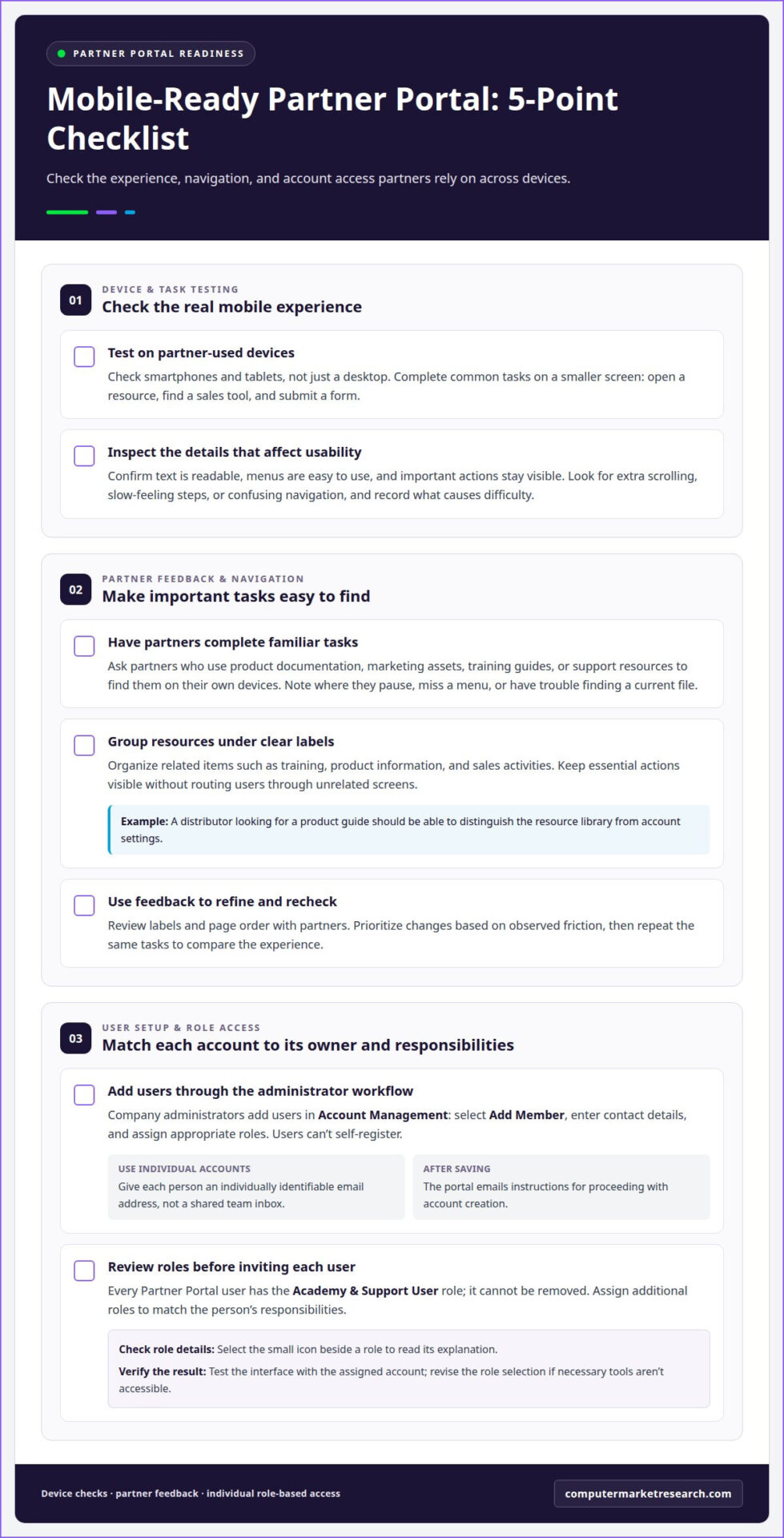
- Test the portal on the devices partners use, including smartphones and tablets. Check common tasks, not just the landing page: open a resource, find a sales tool, and submit a form on a smaller screen. Confirm that text is readable, menus are easy to use, and important actions remain visible. A layout that works on a desktop may require extra scrolling or clearer navigation on a phone. Record any steps that feel slow or confusing.
- Involve partners in reviewing the interface. Ask users who regularly access product documentation, marketing assets, training guides, or support resources to complete those tasks on their own devices. Note where they pause, miss a menu, or struggle to find a current file. Their feedback can reveal navigation issues internal teams overlook. Prioritize improvements based on what you observe, then repeat the same tasks after making changes to compare the experience.
- Make frequent partner tasks easy to find. Group related resources under clear labels, such as training, product information, and sales activities. Keep essential actions visible without sending users through unrelated screens. For instance, a distributor looking for a product guide should be able to distinguish the resource library from account settings. Review labels and page order with partners, and adjust them when feedback shows a task is hard to locate.
- Add each user through the administrator workflow. As of February 2026, Partner Portal users can no longer self-register; company administrators must add them. In Account Management, select Add Member, enter the user’s contact details, and assign appropriate roles. Use an individually identifiable email address for each person rather than a shared team inbox. After saving the new user, the portal emails instructions for proceeding with account creation, giving that person a clear next step.
- Review role access before inviting a new user. Partner Portal users have the “Academy & Support User” role, which cannot be removed. Assign additional roles according to the person’s responsibilities, and select the small icon beside a role to read its explanation. Someone who needs training materials, for example, may need different access from a colleague handling sales activities. Test the interface with the assigned account, then revise the role selection if the user cannot reach necessary tools.
Treat mobile responsiveness as part of portal usability and adoption, not a cosmetic refinement. Consider whether the portal works well on the devices partners choose, and use your observations to guide improvements. A portal that fits partners’ needs is more likely to feel accessible and useful, encouraging adoption.
Involve partners in the design process and ask about their preferences and pain points. Their input can help identify which parts of the experience feel natural and where changes may make the portal easier to use. Gather feedback while considering design choices, then use it to shape the experience around partner needs. Continuing to invite partner perspectives as the portal evolves can help keep its design aligned with how partners want to access and use it.
Platform-specific behavior on web, desktop, iOS, and Android
A mobile browser can open a partner portal if the platform supports browser access; some workflows use a mobile application. The right option depends on the portal’s configuration, so test each access method partners are expected to use.
- Start in a web browser on a laptop or desktop. Sign in, open a frequently used resource, and complete a typical task, such as finding a sales document. Note the page shown after authentication and any prompts. This gives you a baseline for comparison with phone access. If the portal uses a configured Visualforce page, record whether sign-in takes users there.
- Test a smartphone browser separately. Open the same portal page and repeat the same task, such as finding a training guide. Check that menus, forms, and text remain usable at the phone’s screen size, then compare the steps needed to reach the resource. If a control is difficult to use, note its location and the action that caused the problem.
- Use the mobile application when the portal’s configured workflow requires it. In one described setup, a user signed in, confirmed access for the mobile application, and then reached the configured Visualforce page. Follow the sign-in prompt and confirm that the expected destination loads. Don’t assume the app and browser have identical screens or navigation.
- Run the same checks on iOS and Android devices. Test a successful sign-in, access to a key resource, and a return to the portal after leaving its screen. This can reveal differences in display or navigation without assuming that both platforms behave alike. Record the device type, browser or application, and screen where any issue occurs.
- Troubleshoot login or display problems in a consistent order. First, confirm the user has entered the correct account details and can reach the sign-in page. Then reload the page or reopen the application and retry the same action. If the layout appears incomplete, compare the portal in another supported browser or on another device. Record the exact error or affected screen so an administrator can investigate the right step.
A partner portal is a secure online platform businesses use to manage relationships with resellers, distributors, affiliates, and other partners. Access checks should reflect the work a partner needs to do, not just whether a page opens. Verify that the account can reach the appropriate partner-facing material and complete the intended task. A successful sign-in alone doesn’t confirm the workflow is complete; check that the requested resource is accessible and the user can return to the portal afterward.
Keep comparisons consistent by using the same account and task across the access methods being evaluated. If a route behaves differently, note where it diverges and whether the destination remains available. This helps distinguish an access issue from a display or navigation problem and gives an administrator a clear starting point. After any adjustment, recheck the route using the same steps to compare the result with your original observation.
Role-based access and authentication
For a forgotten password, use the password-recovery option on the portal’s sign-in page and follow the instructions sent to the registered email. For a new user, follow the account-creation instructions emailed after the administrator saves the account.
Multi-factor authentication can enhance portal security. Enable it through the portal’s security settings or administrator-managed authentication process, then follow the account’s enrollment prompts.
- Match each account to one identifiable person. Use an individual email address instead of a shared team inbox so sign-in activity and account updates remain tied to the right user. For example, give each distributor representative a separate account, even when several people work for the same organization. This clarifies role assignment and helps administrators manage access when responsibilities change.
- Review the role list before granting additional permissions. Partner Portal users have the “Academy & Support User” role, which administrators cannot remove. To add other roles, select the small icon beside each one to read its explanation. Compare those descriptions with the user’s actual tasks, such as accessing support resources or handling sales activities. Assign only roles that match those responsibilities.
- Check access from the user’s perspective after assigning roles. Sign in with the user account and open a resource or tool they need. For example, confirm that a partner responsible for sales activities can reach the relevant portal area. If access is missing, review the assigned roles and their descriptions before changing permissions. This test helps distinguish an access problem from a mobile display issue.
- Use a consistent recovery process when a user can’t sign in. For an existing account, start with the password-recovery option and the email linked to that account. For a newly created account, find the portal’s account-creation message and follow its instructions. If an administrator manages account setup, route access changes through that administrator rather than sharing another user’s credentials.
- Include multi-factor authentication in the portal’s sign-in process. The administrator should identify the available enrollment steps, communicate them to users, and test the sign-in flow on a mobile device. Ask a user to complete authentication and open a resource appropriate to their role. If the prompt or access result differs from expectations, review the account’s authentication settings and assigned roles.
Mobile access for remote users
Public Wi-Fi alone doesn’t determine portal security; account authentication and network conditions both matter. For sensitive work, use a trusted network or your organization’s approved VPN, and sign out after each session.
If mobile access fails, use the portal’s support resources or contact your company’s portal administrator through the established support channel. Include your device type, the page you tried to open, and any error message.
- Prepare access for the devices remote partners actually use. Test the portal on a smartphone, tablet, laptop, and desktop computer. A partner might review a resource on a phone between meetings, then complete a detailed task later on a laptop. Check that the same account can sign in and reach its assigned tools across those devices.
- Confirm the sign-in destination before partners travel. In one described setup, a user signed in, confirmed access for the mobile application, and then reached the configured Visualforce page. Test that sequence on the device partners will carry so they know which prompt and destination to expect.
- Give remote users a simple access routine: open the portal using the approved browser or application, sign in with an individual account, and locate the needed resource. For example, a distributor representative can test access to a product document before leaving the office. This can surface account or navigation issues while support is easier to reach.
- Take practical precautions on public Wi-Fi. Prefer a trusted connection or an organization-approved VPN for work involving sensitive business information. Don’t save portal credentials on a shared device, and sign out when finished. If a partner must use a shared computer, close the browser session before leaving it unattended.
- Make the support route clear before users need it. Identify the portal’s support resources and the company administrator responsible for account access. Tell users which details help diagnose a problem: device type, browser or application, affected page, and exact error message. For example, “Android phone, mobile application, sign-in prompt repeats” gives support a more useful starting point than “the portal is broken.”
- Treat remote-user issues as operational feedback. Group reports by device, sign-in step, or portal page, then address recurring friction in the relevant workflow. If several partners struggle to reach the same resource, revise the instructions or navigation and test the updated route with a remote user. This keeps mobile access practical without relying on manual workarounds.
Mobile-friendly partner portal access
- Prioritize the tasks partners need to complete away from a desk. List key activities, such as checking a lead, opening product documentation, or reviewing a marketing asset, then test each on a smartphone. A mobile-friendly portal should let users reach essential resources and manage activities on the go. If a task requires repeated zooming or searching through unrelated menus, simplify its route before expanding mobile content.
- Organize the resource library around partner needs. Separate product documentation, marketing assets, training guides, and support resources into clearly named areas. For example, a partner looking for a campaign graphic shouldn’t have to open several folders labeled with internal department names. Use labels that describe the content, then test whether partners can find each resource on a phone without relying on desktop navigation.
- Keep mobile content current and easy to identify. Review documents and tools regularly, and remove outdated versions when replacements are published. A partner opening a product guide should be able to distinguish the current document from an older file. Clear titles and organized categories make this easier on a small screen, where long lists can obscure important details.
- Gather partner feedback through specific task reviews. Ask a distributor to find a training guide or sales resource on a phone. Note the steps they take, where they hesitate, and what they expect to see. Use those observations to revise labels, page order, or resource placement. Retest the task afterward to see whether the new route resolves the original problem. Review partner portal mobile access as part of each usability update.
- Assess portal performance using engagement and operational signals. Review which resources partners use, where they stop, and whether important portal activities support sales performance. Lead management tools, for example, should help partners track and manage leads through the sales cycle. If mobile users rarely reach a key resource, examine its placement and usability before assuming they don’t need it. Use these findings to guide improvements and strengthen partner portal mobile access.
- Make partner orientation part of the mobile rollout. Demonstrate how to navigate the portal, access resources, and use its tools from a phone. A short walkthrough can follow a realistic task, such as finding a training guide and returning to the main portal area. Provide the same instructions in an accessible format, then invite partners to report confusing steps as they use the portal.
Computer Market Research: PartnerPortal™
Computer Market Research offers PartnerPortal™, a platform that centralizes partner onboarding, deal registration, and performance tracking. It can help when partner workflows and channel information are spread across manual processes. To plan for mobile access, define the partner tasks and access roles your organization needs, then consider how a centralized portal can support them. Related processes include Co-op/MDF Management, Rebates & Incentives, and Deal Registration. These capabilities connect partner activity with channel operations rather than treating portal access as a standalone task. Contact Computer Market Research to discuss your partner management workflows and how PartnerPortal™ can support them.
Make mobile access part of your partner workflow
Treat partner portal mobile access as an operating decision, not a last-minute interface adjustment. Identify the partner tasks that matter most, decide who owns access reviews, and establish a regular process for collecting feedback. This gives your team a practical basis for refining the experience as partner needs and channel workflows change.
Computer Market Research helps organizations connect partner management with the processes that support channel programs. If your team is considering how a portal could fit its partner operations, explore PartnerPortal™ and assess how it aligns with your workflow. Start by defining your goals and the partner tasks you need to support.
Explore PartnerPortal™ for your partner workflow, and take the next step toward a more organized partner experience.
Frequently Asked Questions
Which iOS and Android versions and browsers are supported?
Supported versions depend on the portal’s configuration, so there isn’t one universal iOS, Android, or browser list for every partner portal. Check compatibility by signing in with the intended device and browser, then testing essential workflows, such as opening a resource and reaching the correct portal page. Record the operating system, browser, and any error shown. These details help administrators investigate differences in access across devices.
What partner portal tasks can I complete on mobile versus desktop?
Mobile access is useful for quick tasks, such as checking a portal update or opening a document away from a desk. A desktop may be more practical for extended work involving several pages, detailed forms, or side-by-side comparisons. The portal’s configuration determines which functions are available. For example, test whether a partner can update a lead on a phone, then use a desktop for any workflow that benefits from a larger view.

Article by
Del Heles
Del Heles is the founder and CEO of Computer Market Research (CMR), a channel management software company he launched in 1984. With more than 40 years of experience, he’s known for helping manufacturers and distributors simplify complex partner programs through practical, customer-focused technology solutions.